
SOFOS 360
Live scanning
General
Using the Unitech HT330 scanner and the 'SOFOS360 Online Scanner' app, it is possible to have pot mutations fed directly into your SOFOS360. This app can be found in the Android App store (SOFOS360 Online Scanner - Apps on Google Play) and is only available for the Unitech HT330 scanner. With this app, an inventory check can be performed and the status and location of pots can be updated directly in your SOFOS360 administration.
The Scanner app is available in 2 languages (Dutch and English) which can be set in the settings menu. For the app to work correctly, a working WIFI connection is a requirement.
Setting up
Before scanning, the app will have to be installed on you HT330 scanner. The app can be found in the Android app store by searching the term ‘sofos360 online scanner’ and can be installed on your scanner in the normal way. To ensure that the scanner connects correctly to your SOFOS360, things will first have to be set up in the app and in SOFOS360.
Firstly, the scanner will need to enter the address of your SOFOS360. You do this by launching the scanner app and entering the address of your SOFOS360 via the ‘Settings’ menu item in the ‘Address Sofos Environment’ field. This will be something like https://<your company name>sofos.itis.software. In this screen, you will find the scanner's username, password and device ID that you will need later in SOFOS360 when creating a new user.
A new user will have to be created with sufficient rights to perform the scanner actions in SOFOS360. When creating the new user, also enter the aforementioned device ID. After creating the user, the username and password of this new user will have to be entered again in the corresponding fields in the scanner app's settings screen.
The scanner app and SOFOS360 are now linked; scanning is possible.
Scanning
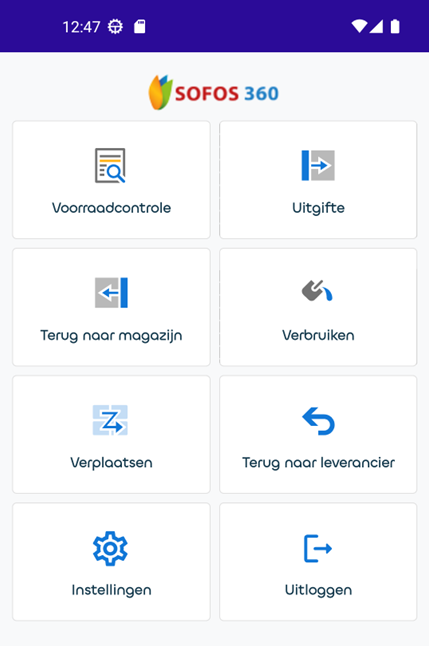
Performing a scan action is basically always the same way. From the main menu, select the action you want to perform. Depending on the chosen action, the room number may have to be entered or scanned first, after which you can enter or scan the desired pot numbers.
Depending on the data already scanned or entered, additional actions are available via the bar menu at the top right.
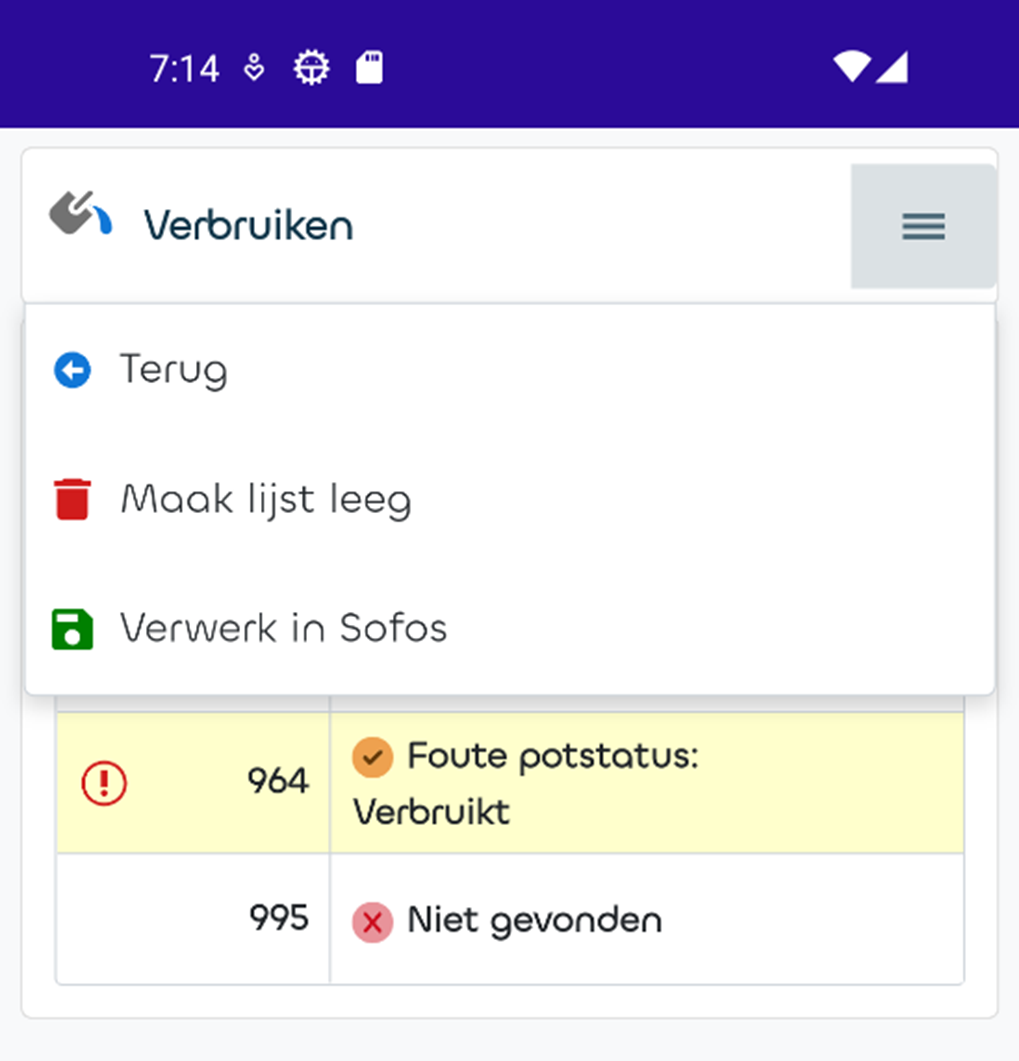
Back: Navigates back to the main menu.
Empty list: Empties the list of scanned pots. (This item is visible if at least 1 pot has been scanned)
Process in Sofos: Processes the relevant scan action and scanned pots and any room, employee, project and cost centre in SOFOS360. After processing, a screen is displayed showing the results of the scan action. (This item is visible if at least 1 pot has been scanned). The ‘Process in sofos’ action will always have to be performed at the end of a scan action to actually get the data processed in SOFOS360.
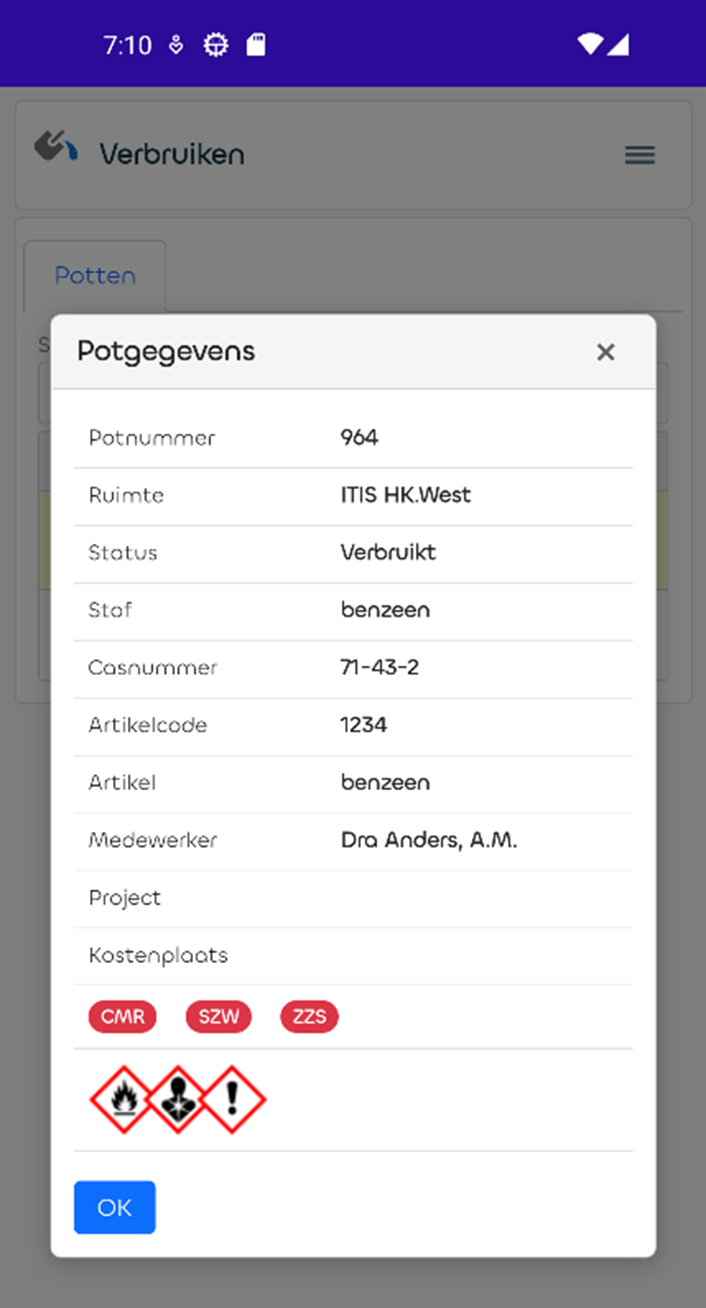
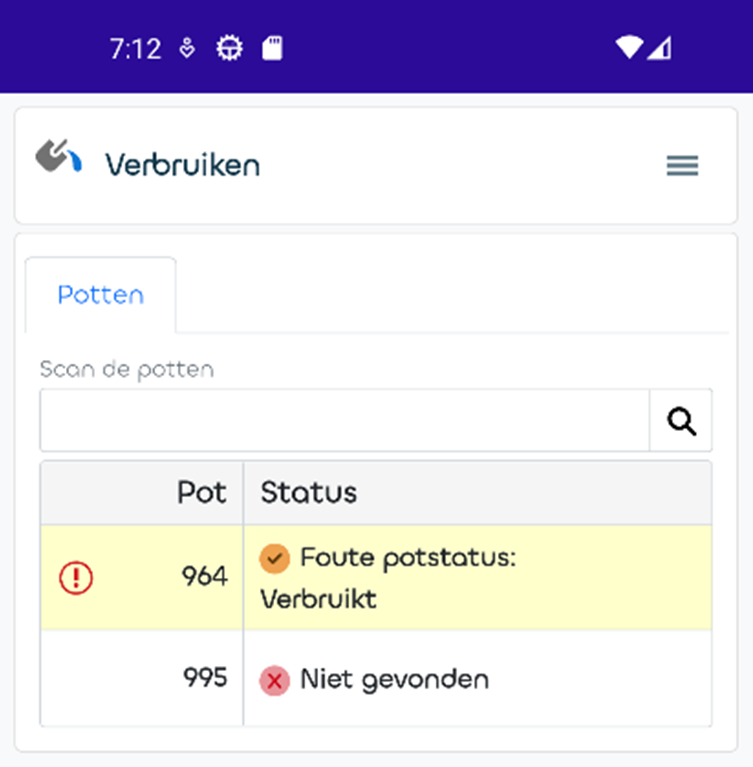
In addition, a number of other functions are available when a room and/or one or more pots have been scanned or entered. ‘Double-tapping’ a line containing a scanned pot will open a screen with information about selected pot.
Scan actions
The following functions are available from the main menu.
Stock check:
Function allows you to check the stock in a particular location. After entering a location and scanning the pots, an overview is displayed after processing, showing the scanned pots and the pots that should be present in that location according to SOFOS360.
Issue:
After scanning the location and scanning the pots (possibly an employee, a project or cost centre can also be entered), after tapping on menu item ‘Process in sofos’, the pot status is set to ‘Issued’ and the pot will be administratively placed in the scanned room.
Return to warehouse:
After scanning the pots, after tapping ‘Process in Sofos’, the pot status will be set to ‘In warehouse’ and the pot will be placed administratively in the entered or scanned location.
Using:
After scanning the pots, after ‘Processing in Sofos’, the status of the pot is set to ‘Consumed’ and the location of the pot will be emptied .
Move:
After scanning a location and the pots, the pots will be moved to the entered or scanned location after ‘Processing in Sofos’.
Return to supplier:
After scanning the pots, after ‘Processing in Sofos’, the status of the pot is set to ‘Back to supplier’ and the location op the pot is emptied.
Settings:
Here, settings for the language, SOFOS360 environment and login details can be set. This data is stored on the scanner.
Logout:
Empties the user name and password in the settings screen.